

3.1 Project Canvas Layout
General Layout
The Project Canvas has seven main components:
- Main Menu
- Left Sidebar
- Project Title bar
- File Statistics card
- Recent File Stream card
- File Explorer card
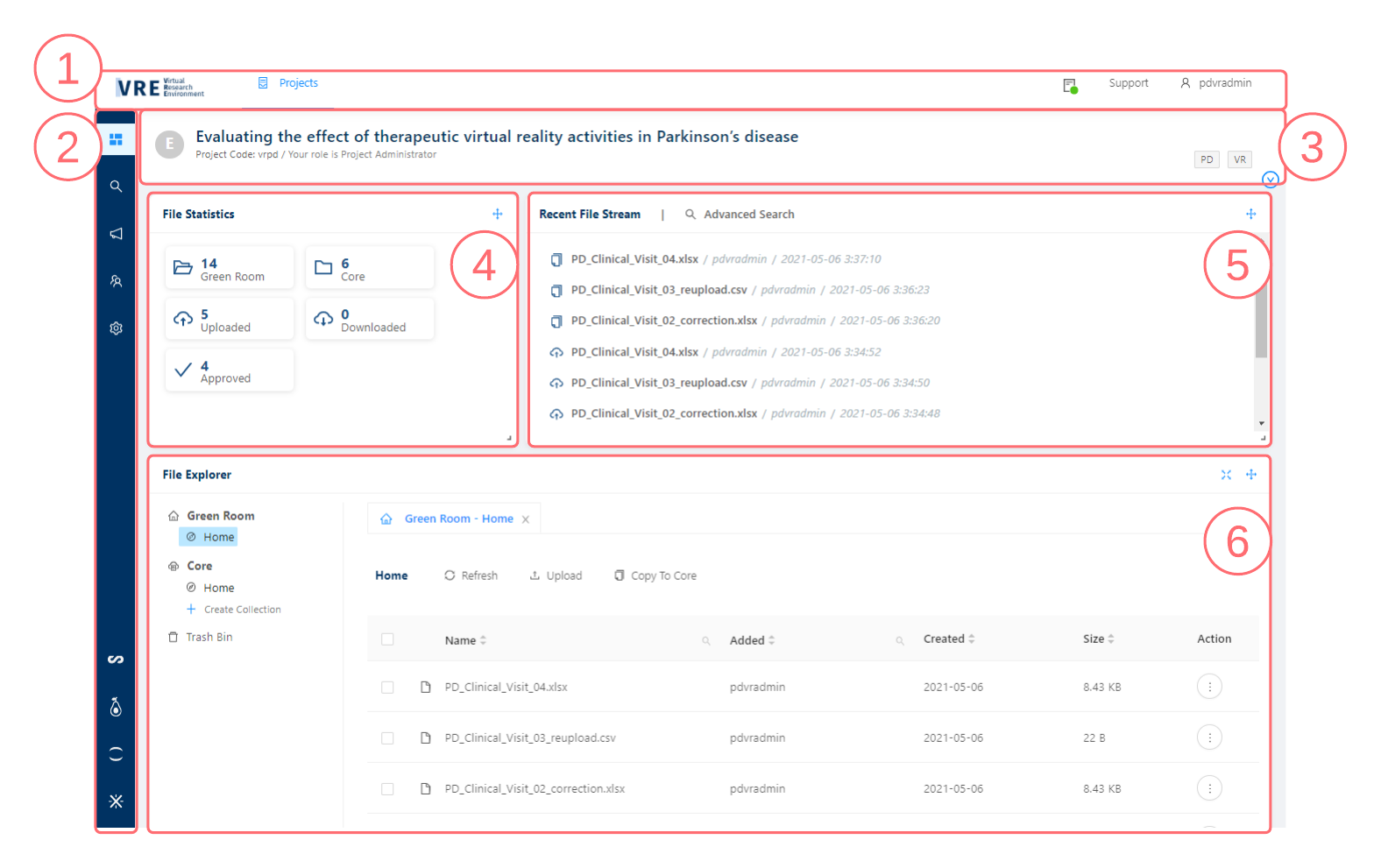
 can be rearranged by clicking the icon and dragging the card to a new location on the canvas. Refresh your browser window to restore the card configuration to the default layout.
1. Main Menu
The Main Menu is used to navigate to the main sections of the site:
This is the main page that is visible upon login. The Project Landing Page shows My Projects and All Projects on the VRE. |
Dataset Explorer This will take you to the Dataset Feature where you can build, annotate, validate, and version your datasets |
Opens the Files Status panel within the current page. This displays the status of files that are currently uploading, downloading, or being moved, as well as the status of previously uploaded files. |
Support Clicking Support opens up a content drawer with links to the VRE User Guide, FAQ, and Contact Us form. Scroll to the bottom of the Support drawer to submit a request to get help with the platform tools and services, to report a bug, or submit other general questions. |
Clicking your username on the right side of the Main Menu allows you to access your Profile, where you can log out or reset your password. |
 Project Landing Page
 Files Status
 User Profile
2. Left Sidebar
The Left Sidebar is used to access Project tools:
| Canvas Homepage of a VRE Project. Displays Project Information, General Statistics, File Statistics, and File Explorer. |
| Search Opens the Search page where users can query files in the Project based on file attributes and metadata. |
 | Announcement Opens the Announcement page where users can see past Project announcements and Administrators can create new announcements. |
| Members Navigates to the Members page where Administrators can view all Project Team Members, add Members, change Member’s roles, and delete Members from the Project. |
| Settings Opens the Project Settings page where the Project details and settings can be edited. The Settings page can also be used to manage Attribute Templates and configure Workbench Tools. |
| Guacamole When configured in a project, allows access to Apache Guacamole, a clientless remote desktop gateway to facilitate workbench analyses with, for example, containerized pipelines. |
| Superset When configured in a project, allows access to Apache Superset, a web application that allows database connections, visualization creation, and dashboard design. |
| JupyterHub When configured in a project, allows access to JupyterHub, providing access to data science computational environments with pre-installed project resources. |
| XWiki Allows project members to access XWiki, an online content management tool for project documentation. |





3. Project Title Bar
The Project Title bar provides the Project Title, the Project Code, and your user role in the Project.
When expanded using the  Panel Expansion button, the Project Title bar displays basic information about the Project:
- Project Administrators: Displays the Project Administrator(s) for the Project. Click a name to open an email and submit an inquiry to the Project Administrator.
- Description: A longer, more informative description of the study. This information can be edited by the Project Administrator on the Settings page.
- Numbers of users who belong to the various user roles: Administrator, Contributor, and Collaborator.
4. File Statistics
Visible only to Project Administrators. Eight statistics are displayed:
- Number of Green Room files in the Project
- Number of Core files in the Project
- Uploaded (today): Number of files uploaded to the Project today
- Downloads (today): Number of files downloaded from the Project today.
- Approved (today): Number of files approved to be copied from one folder to another today.
5. Recent File Stream
A list of recent file actions can be seen in the Recent File Stream card. Search and view detailed file activity logs by clicking Advanced Search. For additional information, see File Stream.
6. File Explorer
The File Explorer offers many features to view, upload, manage, search, and sort files. For additional information, see File Explorer.
See Also:

Copyright © 2022, Indoc Research. This work is licensed under a Creative Commons Attribution-ShareAlike 4.0 International License.