

3.2 File Explorer
Last modified by publicadmin on 2025/12/16 13:04
Layout
The File Explorer offers several features to view, upload, and manage your files. The folders displayed may vary from the example below depending on your Project settings. You can query the files in your Project using the Advanced Search functionality in the File Stream card.
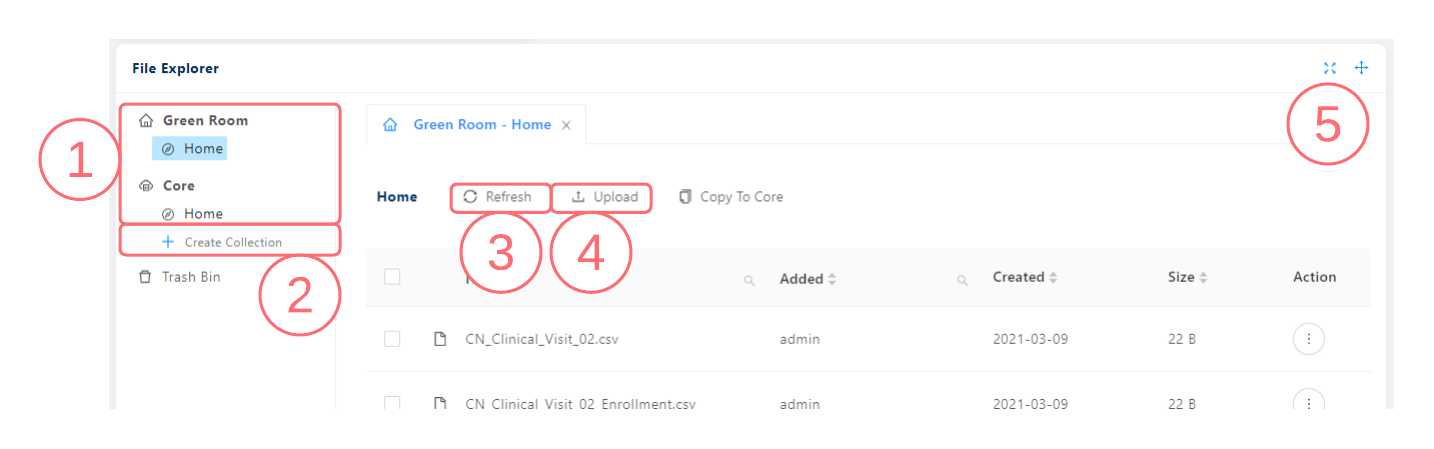
- File Explorer Folders list shows the available folders. Click a folder to view its contents in the File List. If you don’t see a folder, it may be because your user role does not allow you to see it. Contact the Project Administrator for questions about access.
- Collections list shows any collections you have created or that have been shared with you. See File Collections for more details.
- Refresh button
 refreshes the File list from the database. Refreshing your browser page will also refresh the File list.
 - Upload button
 . See File Upload for more details.
 - Expand icon
 expands the File Explorer into a larger window.
Green Room Actions
When a file is selected in the Green Room of the File Explorer additional actions are made available.
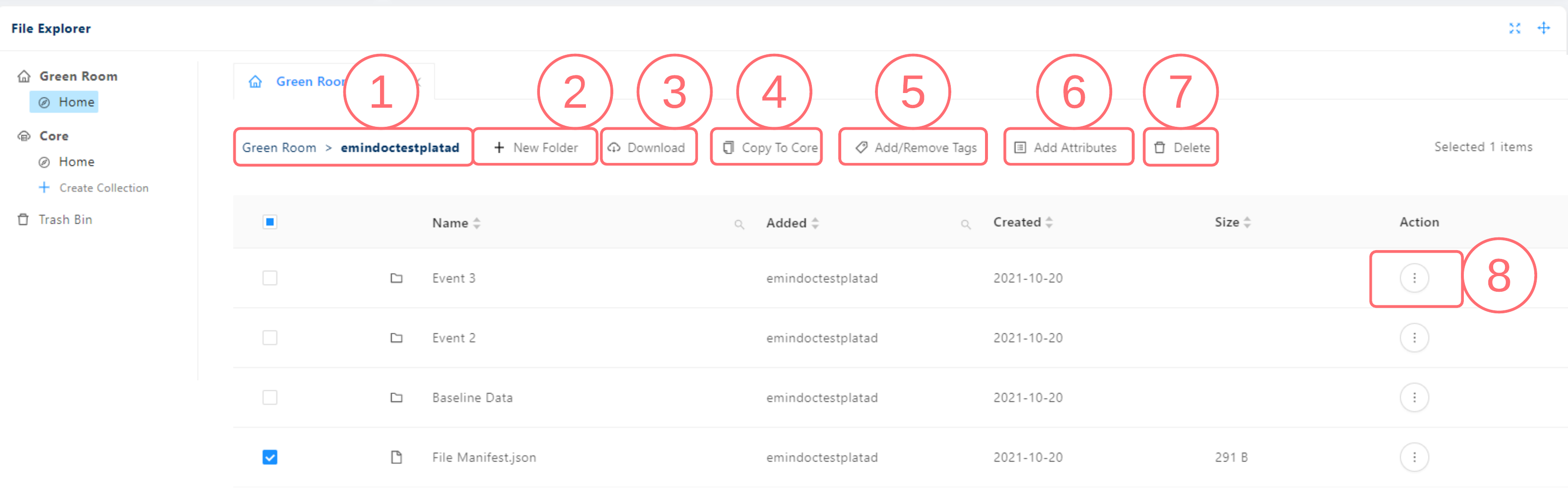
- File path buttons, clicking Green Room will take you to a list of all named folders that you have access to in the VRE Green Room.
- New Folder button +, clicking this button will allow you to create a new folder within the folder you are currently viewing.
- Download button
 See File Download for more details.
 - Copy to Core button
 . See File Processing for more details.
 - Add/Remove Tags, See File Tags for more details.
- Add Attributes Button
 . See File Attributes for more details.
 - Delete button
 . See File Deletion for more details
 - Action menu
 . Available actions are Properties, Download, and Preview (Zip files only). See File Properties for more information.
Core Zone Actions
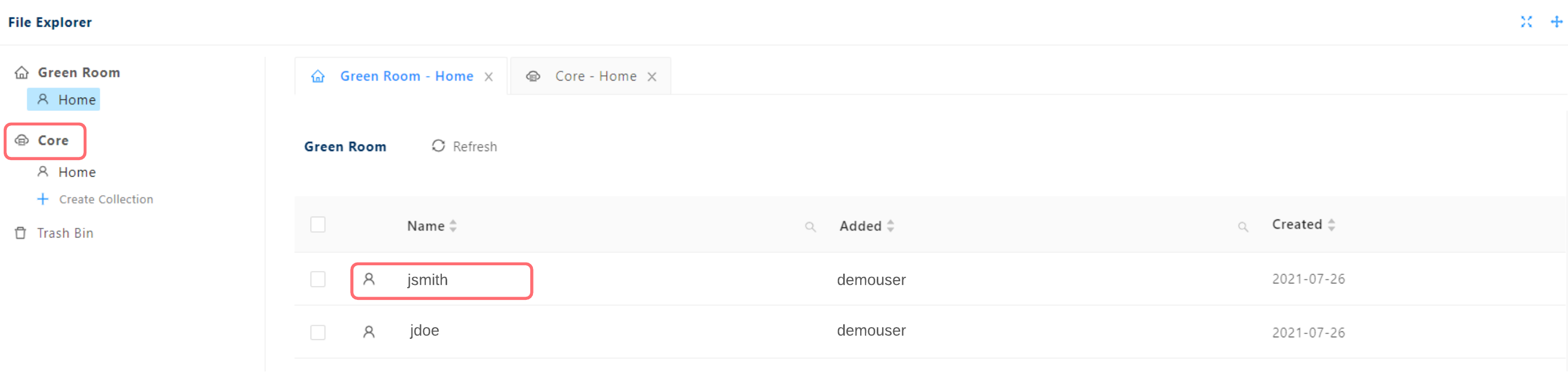
When a file is selected in the Core Zone of the File Explorer two additional actions are made available:
- Add to Collection, See File Collections for more details.
- Add to Dataset, See Working with Datasets for more details.
Columns
The following columns and options are available in the File List of the selected folder:
- Name: search and sort by filename.
- Added: search and sort files by the user who uploaded/created the file.
- Created: sort files by the uploaded/created date.
- Size: sort files by size.
- Action: Click the Action menu to view additional actions. Available actions are Properties, Download, and Preview (Zip files only). See File Properties for more information.
See Also:

Copyright © 2022, Indoc Research. This work is licensed under a Creative Commons Attribution-ShareAlike 4.0 International License.