

7.3 Project Announcements
Last modified by publicadmin on 2025/12/16 13:04
Project Members can use the Announcements feature to notify and send messages to all other Members.
How to Publish an Announcement
- Navigate to your Project Landing page
- Click the Announcement icon
 in the Left Sidebar to navigate to the Announcements page.
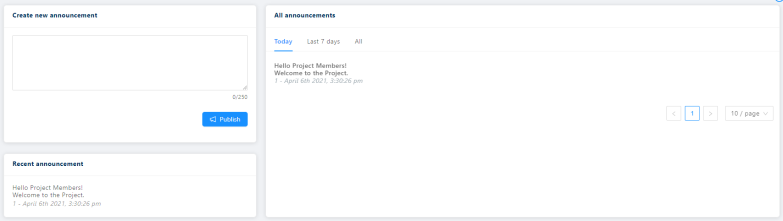
 - In the Create new announcement section, write an announcement (maximum length 250 characters)
Click Publish
Published announcements will appear in both the Recent announcement and All announcements cards with your username and the date and time that the announcement was published.
Checking Announcements
- When a new announcement has been made, the announcement icon will appear red

- Hover over the red announcement icon to read the announcement
- Click the announcement icon to access the announcement page
See Also:

Copyright © 2022, Indoc Research. This work is licensed under a Creative Commons Attribution-ShareAlike 4.0 International License.