

4.2.1 File Attributes
Creating a File Attributes Template
Project Administrators can create and configure File Attribute templates for their projects that will be available to all Project Members to attach to their files during or after upload.
To configure an Attributes template for your project, follow the steps below:
- Navigate to your Project Landing Page and click on the Settings icon in the Left Sidebar
- Select the File Attributes tab
- Click Create New Attribute Template
- Enter a name for your Template and click Next Step
- Click Add Attribute
- Enter an Attribute Name – note that only letters and numbers are permitted.
- Select a Type from the dropdown list, current options include:
- Multiple Choice attributes can have a maximum of 10 choices
- Text attributes will have a maximum of 100 characters
- Toggle Optional off if you want the field to be required for the user to fill out any time the attributes are added. Once a File Attributes template has been created, any additional attributes added to the template must be Optional.
- Click OK to save the Attribute. Repeat steps 6-9 until all of the required Attributes have been added to the file.
- Click Create to save your File Attributes template.
Once a File Attributes template has been created, all Project Members will be able to view the template and attach the Attributes to files they have uploaded into the Green Room. For additional information on adding attributes to a file, please see File Properties.
Importing Attribute Templates
Project Administrators may also import existing Attribute templates as a JSON file. To import a template, navigate to Settings > File Attributes Template and click Import Attribute Template. Once the file has been uploaded and saved with a name, it will be available to all Project Members.
Managing Attribute Templates
Once an Attribute template has been created a Project Administrator will be able to make additional changes to the template.
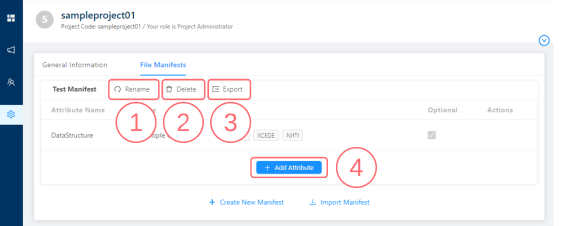
- Rename button
 . When an Attribute template has been renamed, all Files with the template attached will show the new template name.
 - Delete button
 . A Project Administrator may delete the Attribute template from the Project if it has not yet been attached to a file.
 - Export button
 . Project Administrators can download a copy of the Attribute template in a JSON file format.
 - + Add Attribute button. Additional optional attributes may be added to existing templates.
See Also:

Copyright © 2022, Indoc Research. This work is licensed under a Creative Commons Attribution-ShareAlike 4.0 International License.