

4.5 File Download
About File Download
All Project Members are reminded to abide by the Platform Terms of Use and their obligations as Data Controllers when downloading files from the VRE.
Project Administrators can access and download all Project Files, whereas Contributors can only download their own files. See User Roles for more info. A log of all file downloads is maintained by the VRE and can be accessed and queried using the Advanced Search functionality in the File Stream card.
How to Download a File from your Project
Files can be downloaded individually or in bulk directly from the File Explorer.
Individually:
- Navigate to your project and locate the folder of interest in the File Explorer.
- Check the box next to the file you wish to download or open the file’s Action Menu
- Click Download
Bulk Download
- Check the boxes next to the files you wish to download or to select all files on a page, check off the checkbox in the File List header.
- Click Download.
- Bulk Download only: if you have selected multiple files for download, the files will be packaged in a zip file. A filename containing the Project Code will be automatically generated.
Checking File Download Status
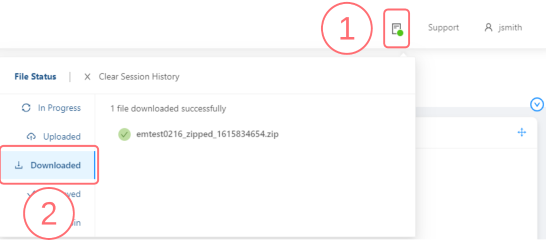
Once a file download is initiated the File Status window will open to show the status of the file:
- Click the File Status icon in the Main Menu to view the status of your current download.
- Click on the Downloaded tab to view all completed downloads from your current session.
To view your download history from previous sessions, navigate to the File Stream card on your Project Landing Page, Administrators will be able to view the activities logs of all Project members.
See Also:

Copyright © 2022, Indoc Research. This work is licensed under a Creative Commons Attribution-ShareAlike 4.0 International License.