

4 - Project Subwiki Setup
About Project Wiki Setup
This Guide for Project Wiki Setup is intended to be used by Platform Administrators of the Virtual Research Environment (VRE) to perform the initial setup steps required to allow Project Members to use the Wiki for their Project.
Resources:
XWiki User Guide: https://www.xwiki.org/xwiki/bin/view/Documentation/UserGuide/
XWiki Users and Group Management: https://www.xwiki.org/xwiki/bin/view/Documentation/UserGuide/Features/UsersAndGroupsManagement
Permission Types: https://www.xwiki.org/xwiki/bin/view/Documentation/AdminGuide/Access%20Rights/Permission%20types/
Things to Know
- The VRE XWiki is connected to the VRE through a Single Sign-On integration, User Profiles and Project Groups are created automatically in XWiki and cannot be created manually:
- A User's Profile is created automatically in XWiki the first time they click on the XWiki icon in one of their VRE Projects
- A Project Group is created on XWiki the first time a Platform Administrator or any of the Project Members clicks on the XWiki icon from the Project's page in the VRE
- A Project Subwiki is created manually by a Platform Administrator when a new Project is onboarded to the VRE
- The VRE Wiki is set up as a multi-tenancy Wiki, so multiple unique subwikis exist within the Main Wiki and have their own unique pages and access rights
- Main Wiki
- only accessible to Platform Administrators
- view access blocked to regular VRE users and Unregistered Users
- contains User Profiles, Global User Rights, and all subwikis
- access maintained by VRE Support Team
- Project-base Subwikis
- edit access granted to all Project members
- view access blocked for other VRE users and unregistered users
- contains Project-specific pages and information
- created and administered by Platform Administrators
- Public Subwiki
- publically available to all VRE users AND unregistered users
- contains user support materials
- created and maintained by Indoc Team
- Main Wiki
- Access Rights can be granted to Users or Groups
- A user or group can be granted Access Rights at different levels:
- Globally to the XWiki and all of its subwikis
- Locally to a subwiki and all of its pages
- To a Page and all of its Children
- To a Single Page within a subwiki
- XWiki operates on an 'implicit denial' system - if a user or group is granted a specific type of access to a specific page, all other users or groups will be denied access by default, for example:
- Turning on View rights for a Project Group to their Project Subwiki will automatically deny access to that subwiki for all other users
- Turning View rights on for a particular user in the Main Wiki: Global Rights page will deny view access to the Main Wiki for all other users by default
- Users that are not Platform Administrators are denied access to the Main Wiki to to keep the User Profiles of other VRE users private and to hide the list of subwikis
- Turning on high-level Access Rights will grant other access rights by default
- Granting Admin access to a user or group for a specific page will by default provide the user or group with View, Like, Comment, and Edit access
- Granting Admin or Program access in the Global Administration to a user or group will grant those users View, Like, Comment, Edit, Delete, Register, and Script access by default
- Unregistered users are able to access the VRE Public subwiki and view all of its contents, including:
- VRE User Guide
- Platform Administrators Guide
- Developers Guide
1 Initializing a Project Wiki
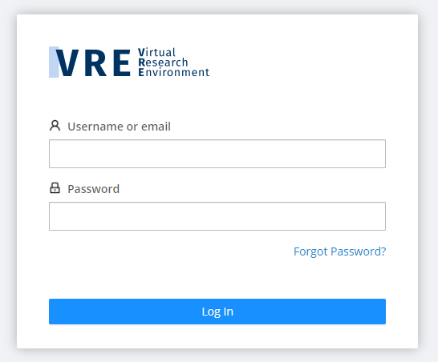
1.1: Log into the Virtual Research Environment
- Open a browser connected to the internet and navigate to the VRE portal: https://vre.charite.de/vre
1.2: Access the Wiki from the Project Canvas
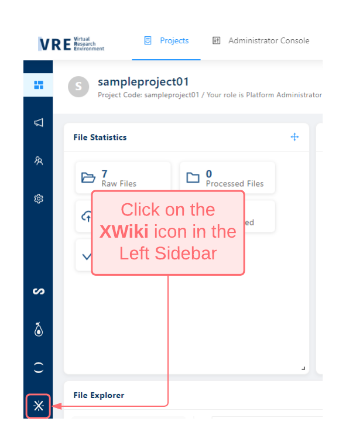
- Navigate to the Project for which you would like to setup the Wiki page and click the Wiki icon in the Left Sidebar.
- Click on the action menu in the right-hand corner and click Log-in
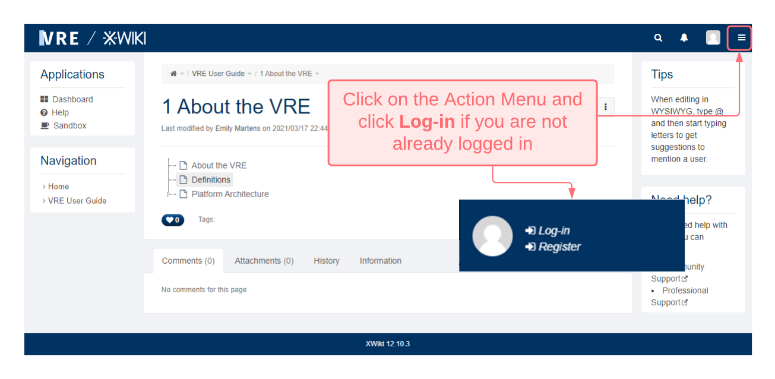
- You will be automatically logged into XWiki with your VRE account through the Single Sign-On integration.
1.3: Create Project Subwiki
- Click the action menu in the right-hand corner and click Wiki Index
- Click Create Wiki
- Under Pretty Name enter the Project Code
- The Wiki Identifier should match the Project Code
- Under Flavor/Template switch to the Template tab
- Select the Private Project Subwiki template from the dropdown
- Click Next Step
- Select Only global users are available in the wiki and Only an admin can send invitations to join this wiki
- Click Create
- The subwiki will be setup automatically, this process can take several minutes
- Once completed click on Go To Subwiki to configure the subwiki Access Rights
2. Administering Project Subwiki User Rights
2.1 Initialize Project Wiki User Group
- A new Project Group (named to match the Project Code) will be automatically created in XWiki when a Platform Administrator or Project Members clicks on the XWiki icon in the left sidebar of the Project's landing page.
- Project Groups on XWiki contains all Project Members from the VRE that have previously accessed XWiki
2.2 Administer Project Subwiki for Project User Group
- Navigate to the Project subwiki main page
- Open the action menu in the top right-hand corner and click Administer Wiki
- Select Users and Rights > Rights
- Select the Global list from the Groups dropdown
- Turn on View, Like, Comment, and Edit access for the Project Group with the corresponding Project Code
- Project members will now be able to access and update the content on their Project subwiki
- VRE users and unregistered users who are not a member of the project will be denied access to the Project Subwiki
 Enable permissions by checking off the checkbox.
 Deny permission by checking the checkbox a second time to show the Deny icon.
Boxes left blank will follow the default settings for your Project’s XWiki Page.
2.4 Grant access to VRE User Guide
When a new Project is created the corresponding Group on XWiki must also be granted access to the VRE User Guide
- Navigate to the VRE Public Subwiki in the navigation bar at the top of the Main Wiki
- Open the action menu in the top right-hand corner and click Administer Wiki
- Select Users and Rights > Rights
- Select the Global list from the Groups dropdown
- Turn on View access for the new Project Group
3 Grant Platform Administrator Access
Platform Administrators can be granted administrative access to the VRE Wiki.
- Click on the action menu in the top right-hand corner and click Administer Wiki
- Click Users & Rights
- Click Rights
- Switch to the Users tab and search for the user that you would like to grant global administrative access to.
- Turn on Admin or Program depending on the level of access you would like the user to have.

Copyright © 2022, Indoc Research. This work is licensed under a Creative Commons Attribution-ShareAlike 4.0 International License.